STBEmu Portal URL: What It Is, How to Set It Up and How to Fix Common Errors
Introduction to STBEmu Portal URL
STBEmu is a popular IPTV emulator application designed for users who want to access compatible IPTV services through Android devices, Android TV boxes, smartphones, and other supported platforms. One of the most important settings when configuring this application is the STBEmu Portal URL.
If you are new to STBEmu, you may wonder what a portal URL means, where you can find it, and how to enter it correctly. Understanding these settings can make the configuration process easier and help prevent common connection problems.
An STBEmu Portal URL is an address provided by an IPTV service provider. It allows the application to communicate with a compatible portal server. Depending on the provider’s configuration, this address may connect the application to available channels, categories, electronic program guides (EPG), and other supported features.
In this comprehensive guide, we explain everything you need to know about STBEmu Portal URL configuration, including setup instructions, common mistakes, troubleshooting tips, and important security recommendations.
Softwares To Test STBEMU Code
For Android Devices

For Windows
What Is an STBEmu Portal URL?
An STBEmu Portal URL is a web address used by the STBEmu application to connect to a compatible IPTV portal.
Unlike traditional television services that rely on satellite dishes or cable connections, compatible IPTV platforms deliver television content through an internet connection.
The portal URL acts as a communication point between the STBEmu application and the service provider’s server.
A typical portal address may look like this:
http://example.com:8080/c/
This is only an illustrative example, not a working IPTV portal.
The actual address must come directly from your IPTV provider. Different providers may use different server addresses, ports, and portal paths.
It is important to understand that a portal URL alone does not guarantee access to television content. Your service provider may also require an authorized subscription, device configuration, or additional authentication details.
How Does STBEmu Work?
STBEmu works by emulating certain functions of compatible IPTV set-top boxes. This allows supported Android devices to communicate with IPTV portal systems.
The application provides an interface that resembles the software environment found on some traditional IPTV receivers.
The general process works as follows:
- Install the STBEmu application on a compatible Android device.
- Open the application settings.
- Create or select a profile.
- Enter the portal URL supplied by your provider.
- Configure the device information if required.
- Save the settings.
- Restart the application and test the connection.
When the configuration is correct and the service is active, the application attempts to communicate with the provider’s portal server.
The available features depend on the provider, application version, device compatibility, and subscription permissions.
How to Set Up STBEmu Portal URL
Setting up an STBEmu Portal URL is relatively straightforward. However, entering incorrect information can prevent the application from connecting to the portal.
Follow these steps to configure your application.
Step 1: Install STBEmu
First, install a compatible STBEmu application on your Android smartphone, tablet, or Android TV device.
Always download applications from trusted and legitimate sources. Check the application name, developer information, and compatibility before installation.
Step 2: Open the Application Settings
Launch STBEmu and access the settings menu.
Look for the Profiles section. This is where you can create a new configuration or modify an existing profile.
Step 3: Create a New Profile
Select the option to add a new profile.
Give your profile a recognizable name so you can identify it easily if you use multiple configurations.
For example, you could use a name such as Home IPTV Profile.
Step 4: Enter the Portal URL
Open the profile configuration settings and locate the Portal URL field.
Enter the exact portal address provided by your authorized IPTV service provider.
Pay attention to the following details:
- Check whether the address begins with HTTP or HTTPS.
- Make sure the server hostname is correct.
- Verify the port number.
- Include the correct portal path.
- Avoid unnecessary spaces before or after the address.
Even a small typing mistake can prevent a successful connection.
Step 5: Configure Device Information
Some IPTV portal systems require device identification information.
Depending on the provider and application version, you may need to configure a supported MAC address or other device-related settings.
Only use device information that you are authorized to use. Never attempt to access another person’s subscription or bypass provider security restrictions.
Step 6: Save and Restart
After entering the required information, save your profile.
Return to the main screen and restart STBEmu.
If your portal address and other settings are correct, the application should attempt to establish a connection.
Common STBEmu Portal URL Errors and Solutions
Sometimes STBEmu may fail to connect even when the portal address appears correct.
Understanding common errors can help you identify the problem more quickly.
1. Portal URL Not Working
An incorrect portal address is one of the most common configuration problems.
Possible causes include:
- Incorrect server hostname.
- Missing port number.
- Incorrect portal path.
- Expired or discontinued service.
- Temporary provider server problems.
Solution: Contact your IPTV provider and request confirmation of the current portal address. Re-enter the complete address carefully.
2. STBEmu Connection Timeout
A connection timeout usually means the application cannot establish communication with the portal server within the expected time.
Possible reasons include internet connectivity problems, server maintenance, network restrictions, or an unavailable provider server.
Solution: Check your internet connection, restart your router, and try again. If the problem continues, contact your provider.
3. Authorization Failed
An authorization error may occur when the portal does not recognize the device or the subscription information.
Possible causes include incorrect device identification, an inactive subscription, or provider-side access restrictions.
Solution: Verify your subscription status and device configuration with your service provider.
4. Black Screen or Missing Channels
A black screen does not necessarily mean that your portal URL is incorrect.
It may be related to unavailable streams, unsupported formats, temporary server issues, or application compatibility.
Solution: Test another permitted channel, check whether the provider reports service interruptions, and make sure your application is updated.
5. Portal Loading Forever
If STBEmu remains on the loading screen, the application may be having difficulty communicating with the server.
Solution: Restart the application, verify the portal address, check your internet connection, and try again later if the provider is experiencing maintenance.
STBEmu Portal URL vs. M3U URL: What Is the Difference?
Many users confuse STBEmu Portal URLs with M3U playlist URLs. Although both are associated with IPTV services, they are not necessarily interchangeable.
An STBEmu Portal URL is generally used to connect to a compatible IPTV portal system.
An M3U URL is a playlist address that provides a list of media streams supported by compatible players.
Here are the main differences:
| Feature | STBEmu Portal URL | M3U URL |
|---|---|---|
| Main purpose | Portal connection | Playlist access |
| Configuration | Portal profile | Playlist import |
| Compatibility | Compatible portal systems | M3U-supported players |
| Authentication | Provider-dependent | Provider-dependent |
| Content access | Portal-based | Playlist-based |
Before choosing an IPTV player, check which connection method your provider supports.
STBEmu Portal URL
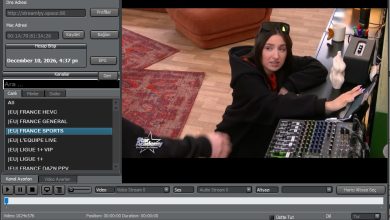
[+] Panel: http://dragonbox.nl/c/ [+] Mac: 00:1A:79:1A:A9:D7 [+] Exp.: February 16, 2027, 11:41 am [+] ᴍᴀᴄ ꜱᴛᴀᴛᴜꜱ: ᴀᴄᴛɪᴠᴇ ᴍᴀᴄ😝 [+] ᴍ3ᴜ ꜱᴛᴀᴛᴜꜱ: ᴏꜰꜰʟɪɴᴇ😔 [+] ᴄʜᴀɴɴᴇʟCategories: 62 [+] ᴠᴏᴅCategories: 1 [+] ꜱᴇʀɪᴇꜱCategories: 2 [+] m3u_Url:
You can watch the video to learn how to download the file.
Best Practices for STBEmu Portal Configuration
A properly configured application can provide a smoother experience and reduce unnecessary connection problems.
Consider these recommendations:
Use a reliable internet connection: A stable broadband connection or strong Wi-Fi signal can help reduce buffering and connection interruptions.
Keep the application updated: Newer versions may include compatibility improvements, security fixes, and performance enhancements.
Verify your portal information: Always use the exact details supplied by your provider.
Avoid untrusted portal addresses: Unknown addresses may expose your device to security and privacy risks.
Protect your subscription details: Do not publicly share account credentials, device identifiers, or private portal information.
Check provider compatibility: Not every IPTV service supports STBEmu. Confirm compatibility before purchasing a subscription.
Is STBEmu Available for Android TV and Smartphones?
STBEmu is primarily associated with Android-based devices and compatible IPTV environments.
Depending on the application version, users may be able to configure it on Android TV boxes, smartphones, tablets, and other supported Android devices.
The experience may differ depending on screen size, hardware performance, operating system version, and remote-control compatibility.
For Android TV users, a compatible remote control can make navigating menus and changing settings easier.
Before installing any version, check its official availability, system requirements, and developer information.
Frequently Asked Questions About STBEmu Portal URL
What is an STBEmu Portal URL?
It is an address supplied by a compatible IPTV provider that allows the STBEmu application to communicate with its portal server.
Where can I find my STBEmu Portal URL?
You should obtain your portal address directly from your authorized IPTV service provider. It may be included in your subscription instructions or configuration documentation.
Can I use an M3U URL as an STBEmu Portal URL?
Not necessarily. M3U playlists and portal URLs use different connection methods. Check which formats your provider and application support.
Why does my STBEmu Portal URL show an error?
The problem may be caused by an incorrect address, an unavailable server, expired access, incorrect device settings, or network connectivity issues.
Does STBEmu work without an internet connection?
No. An internet connection is required to communicate with online IPTV portal servers and access internet-based streams.
Can I use STBEmu on Android TV?
Compatible versions can be used on supported Android TV devices. Availability and performance depend on the application version and device specifications.
Is a portal URL the same as an IPTV subscription?
No. A portal URL is a connection address, while an IPTV subscription represents the service and access rights provided by an operator.
Conclusion
Understanding the STBEmu Portal URL is an important part of configuring the STBEmu application correctly. From creating a profile and entering the portal address to troubleshooting connection errors, every configuration step contributes to a more reliable experience.
Always use the portal information provided by your authorized service provider, verify device compatibility, and keep your application updated.
If you are looking for more Android application guides, IPTV player information, and installation tutorials, visit apkyukleme.com for additional technology resources and helpful guides.
With the correct configuration and a compatible service, STBEmu can provide a convenient way to access supported IPTV portal features on Android devices.